
Appearance and installation
Customize the window, avatar and logo
Adapt visual identity without confusing it with knowledge.
Reviewed October 23, 2026 · Customer guide
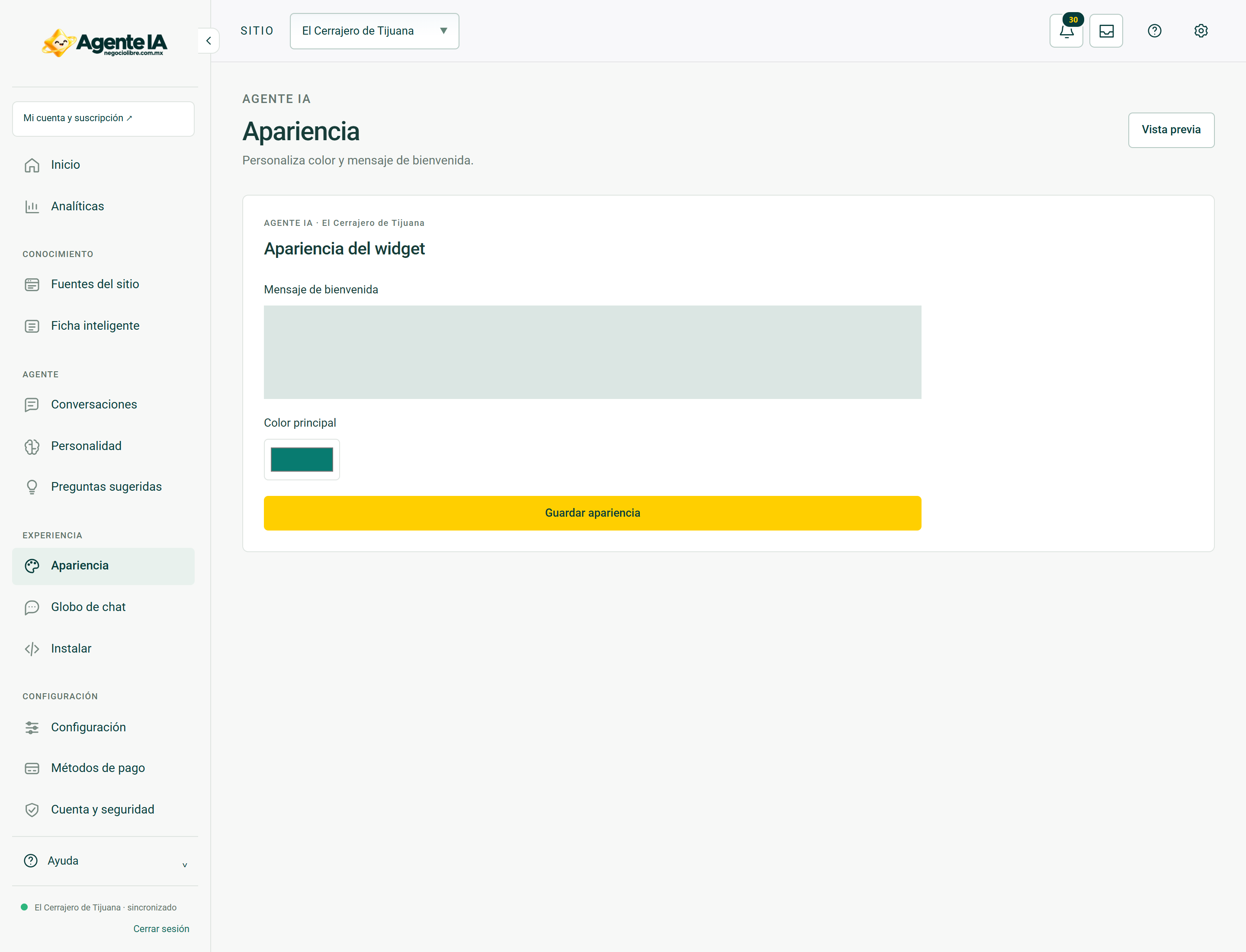
Read about this screen’s controls →
Steps
- Open Appearance and review the controls allowed for your plan.
- Configure color, position, texts and available brand resources.
- If there are avatar or logo options, use the corresponding field: they are different functions.
- Save and review the window on mobile, desktop and pages with floating buttons.
Brand resources
An avatar represents the assistant; A logo identifies the company. They should not substitute each other by mistake. Maintain good readability and avoid images with tiny text. Some customizations depend on the contracted capacity.
What doesn’t change
Uploading an image does not change sources, products, or responses. Check that the window does not cover cart, navigation or site controls. Don’t promise that a previous capture reflects changes that haven’t been saved yet.
How to verify it worked
The branding is legible and the widget opens, writes, sends and closes without obscuring essential controls.