How can we help you?
From the first installation to daily operation. Find steps, checks and solutions for your product.
14 documented screen states · expandable screenshots · fields and buttons explained.
Explore panel map →Getting started
Knowledge
Configure website sources
Defines what business content is available to respond to.
KnowledgeUse a sitemap and product index
Helps the agent discover published pages and listings.
KnowledgeSynchronize and review progress
Updating fonts is not just about pressing a button.
KnowledgeReview the smart business profile
Check how your business information was organized.
Settings
Business details and advisor contact
Maintain a single contact reference for the agent.
SettingsConfigure business payment methods
Allows you to explain payment methods based on approved data.
SettingsAdjust tone, goals and boundaries
Make the agent communicate as your business without altering the facts.
SettingsConfigure the greeting and suggested questions
Makes it easier to start without filling the window with buttons.
Appearance and installation
Operations
Recommend products with details and links
Use the connected catalog, not made up names.
OperationsReview conversations and unanswered questions
Improve knowledge using real care cases.
OperationsUnderstand agent analytics
Review activity without confusing messages, responses and technical calls.
Troubleshooting
Account and security
Sign in, sign out and recover access
The dashboard session and the purchasing account serve different purposes.
Account and securityBusinesses, users and permissions
Manage access without sharing one account across the entire team.
Account and securityNotifications and inbox
Review operational notices and distinguish a historical event from a current error.
Account and securityKeys, data and secure practices
Protect dashboard access and your business integrations.
Account and subscriptions
Dashboard reference
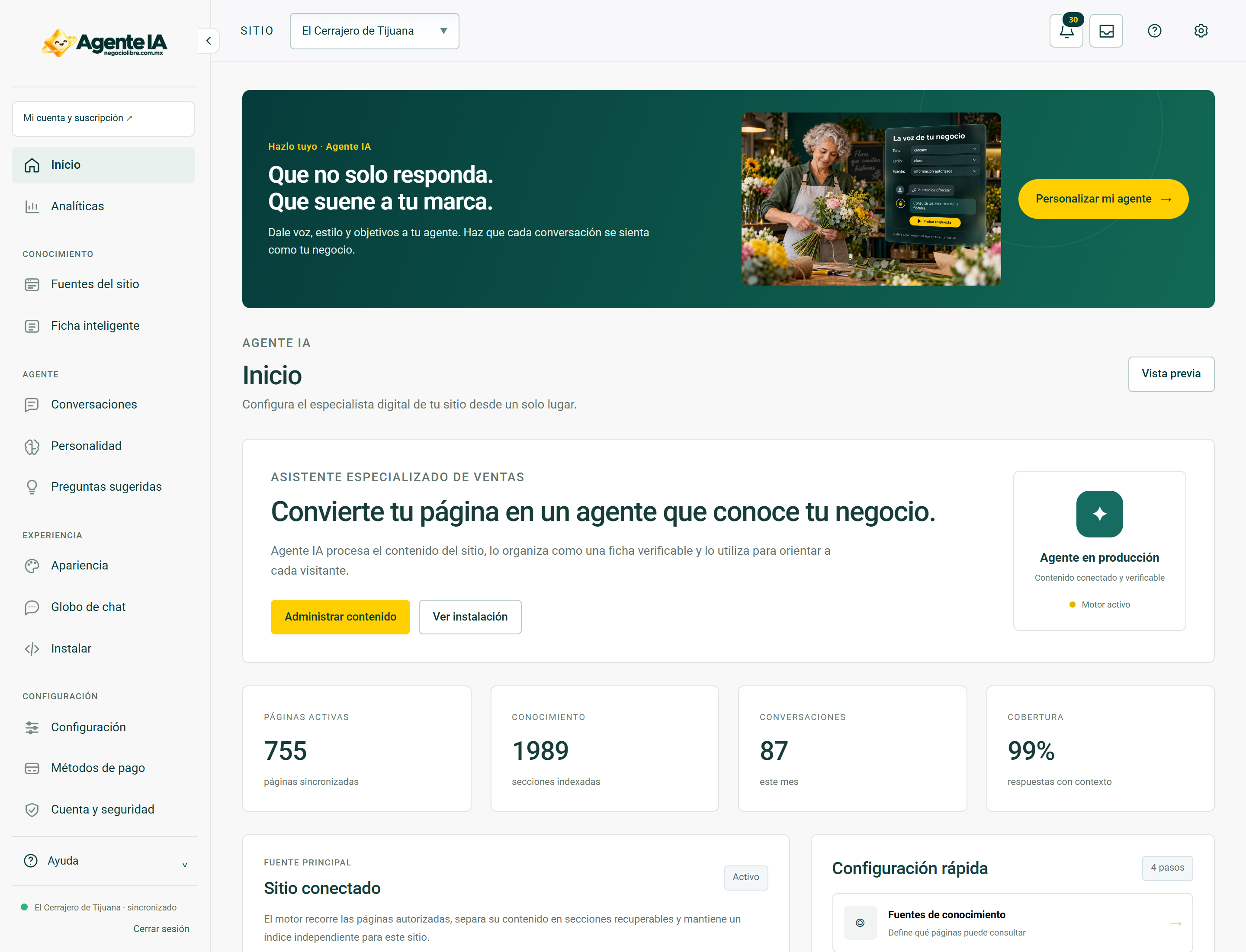
Home · controls and screen
See each field, button and Home tab, with screenshots of the system and explanation of their effects.
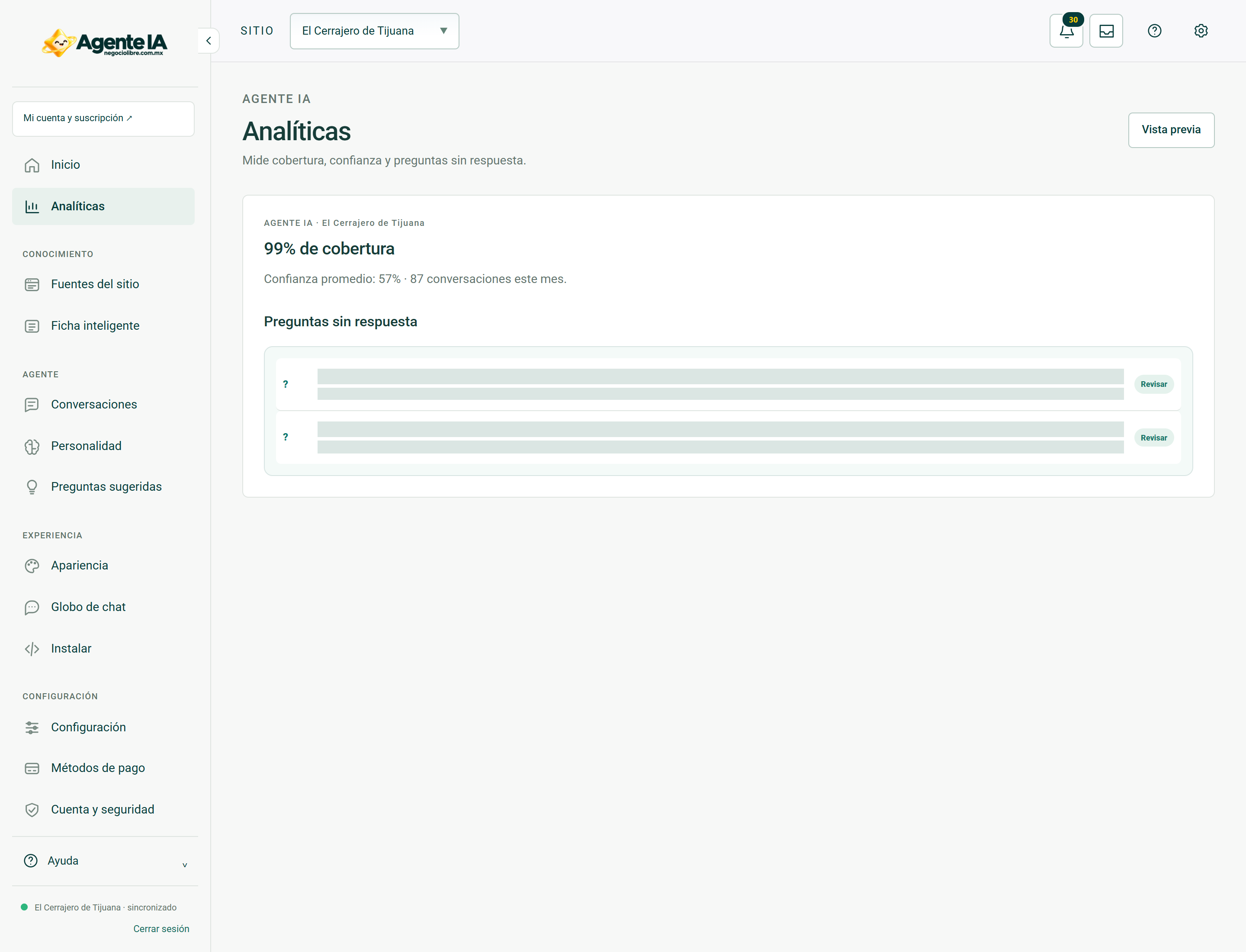
Dashboard referenceAnalytics · controls and screen
Consult each Analytics field, button and tab, with system screenshots and explanation of their effects.
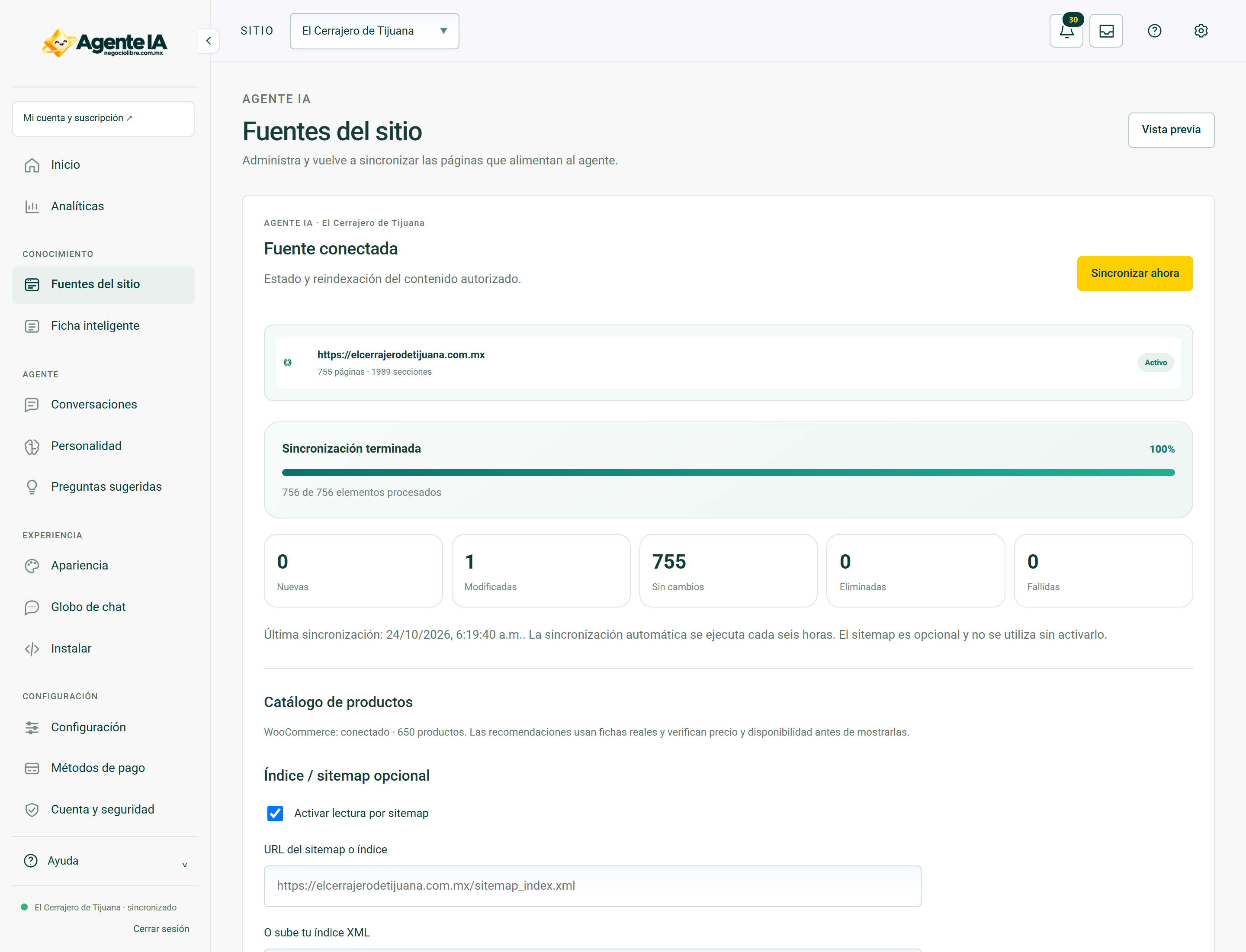
Dashboard referenceWebsite sources · controls and screen
Consult each field, button and Fonts tab on the site, with screenshots of the system and explanation of its effects.
Dashboard referenceSmart business profile · controls and screen
Consult each field, button and tab of Smart Tab, with screenshots of the system and explanation of their effects.
Real screens to guide you
These screenshots document system views with private fields hidden. In access and troubleshooting guides, they show the context you should be able to review after recovering your session; they do not show a simulated error or a sign-in form.