
Install the agent on WordPress or another website
Publish the authorized integration to the correct site.
Reviewed October 23, 2026 · Customer guide
Read about this screen’s controls →
Steps
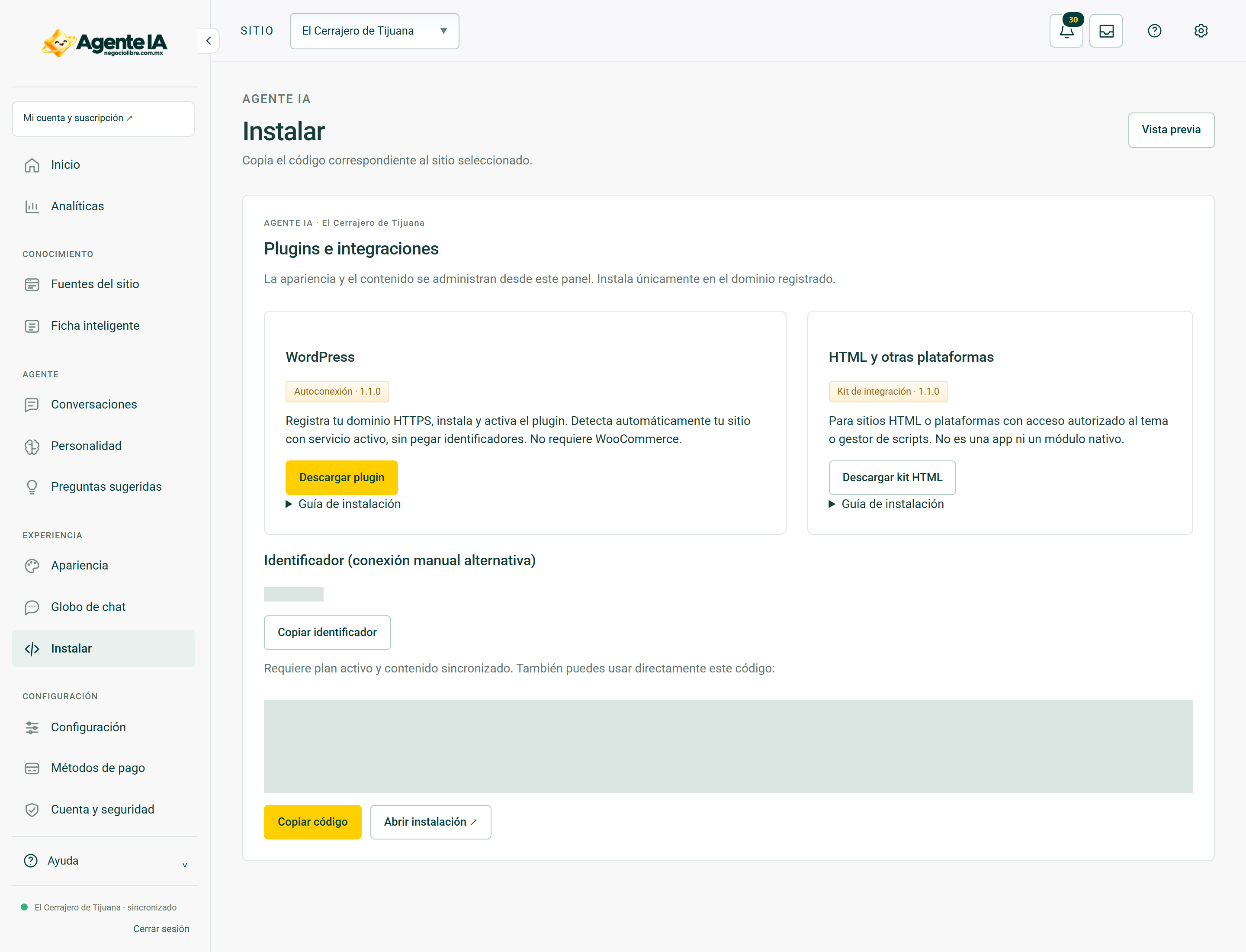
- Under Install, identify the domain and the installation resource available for that site.
- In WordPress use the offered plugin; install and activate from Plugins → Add new → Upload plugin.
- If the integration is by code, place only the public fragment delivered, following the instructions on that screen.
- Open the site without an administrator session and try a conversation and the advisor link.
Do not reuse configurations
Do not copy another business ID or an administrative key to the public code. The installation should point to your site and use its settings. Don’t insert the widget twice from plugin and theme.
When it doesn’t appear
Confirm activation, domain, script blocking and CSP policies. Check to see if an optimizer delays or eliminates the integration. Don’t disable global site protections as a first step; identifies the failing resource.
Acceptance
A correct installation requires checking responses and contact, not just that a bubble appears. Also check internal and mobile pages.
How to verify it worked
The visitor sees the right business agent, can chat and has a human means of contact.