
Chat bubble · controls and screen
See each field, button and tab of Chat Balloon, with screenshots of the system and explanation of their effects.
Reviewed October 23, 2026 · Customer guide
Navigation was checked and controls were checked against the panel code. Save, import, delete, and activate operations were not run on production data for this screenshot.
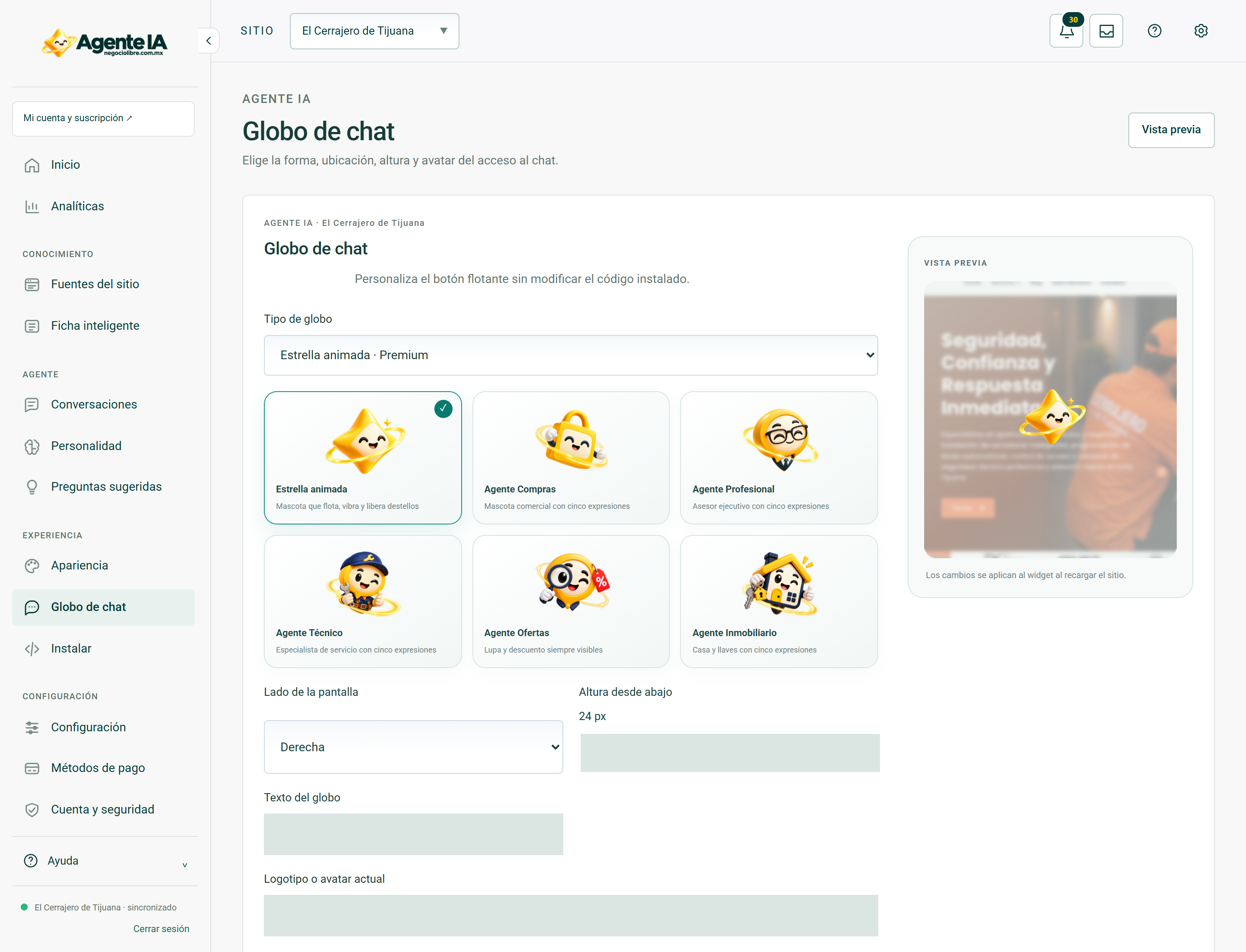
Control by control
| Control | How to use | Effect |
|---|---|---|
| 1SITIOselect | Change the store or active site. Check this selector before saving, importing, or syncing. | data entryLocated in the actual interface |
| 2Notifications: 18 unreadbutton | Opens account context notices and its unread counter. A historical warning does not confirm a current failure. | ReadingLocated in the actual interface |
| 3inboxbutton | Open the account’s messages and notifications inbox. | NavigationLocated in the actual interface |
| 4MY ACCOUNT ↗to | Open account, sites or subscription management; It is not the editor of the search engine. | NavigationLocated in the actual interface |
| 5Administration ↗to | Open global administration if your account has that permission. It should not be shared with a client without authorization. | Browsing with permissionLocated in the actual interface |
| 6Activate dark modebutton | Toggle the visual theme and retain the browser preference. It does not modify content or commercial data. | Local preferenceLocated in the actual interface |
| 7Previewbutton | Open the associated site to check the published experience. It does not confirm that unsaved changes are published. | NavigationLocated in the actual interface |
| 8Globe type Capsule with text Circle Rounded box Minimalist Animated star Premium Purchasing Agent Premium Professional Agent Premium Technical Agent Premium Agentselect | Globe style. Some options require premium capacity; knowledge does not change. | data entryLocated in the actual interface |
| 9Animated star Mascot that floats, vibrates and releases sparklesbutton | Select the visual asset for the preview. Review the premium conditions and save the form to apply when applicable. | Visual selectionLocated in the actual interface |
| 10Shopping Agent Commercial Mascot with Five Expressionsbutton | Select the visual asset for the preview. Review the premium conditions and save the form to apply when applicable. | Visual selectionLocated in the actual interface |
| 11Professional Agent Executive Advisor with five expressionsbutton | Select the visual asset for the preview. Review the premium conditions and save the form to apply when applicable. | Visual selectionLocated in the actual interface |
| 12Service Specialist Technical Agent with five expressionsbutton | Select the visual asset for the preview. Review the premium conditions and save the form to apply when applicable. | Visual selectionLocated in the actual interface |
| 13Agent Offers Magnifying glass and discount always visiblebutton | Select the visual asset for the preview. Review the premium conditions and save the form to apply when applicable. | Visual selectionLocated in the actual interface |
| 14Real Estate Agent House and keys with five expressionsbutton | Select the visual asset for the preview. Review the premium conditions and save the form to apply when applicable. | Visual selectionLocated in the actual interface |
| 15Screen side Right Leftselect | Position of the element in its context. In the balloon select left or right; in a campaign indicates requested location. | data entryLocated in the actual interface |
| 16verticalOffsetrange | Vertical separation of the balloon from the edge, in pixels. Avoid covering cart or controls. | data entryLocated in the actual interface |
| 17balloon textfield | Text that invites you to open the chat. Keep it short. | data entryLocated in the actual interface |
| 18Current logo or avatarurl | Assistant visual resource. It is not equivalent to a source of knowledge. | data entryLocated in the actual interface |
| 19Upload your own logo Choose PNG, JPG or WebP image · maximum 4 MB. It will automatically adjust to classic styles.files | Select your own image supported by the panel. Check the indicated format and limit before uploading. | data entryLocated in the actual interface |
| 20Agente IAbutton | Select the visual asset for the preview. Review the premium conditions and save the form to apply when applicable. | Visual selectionLocated in the actual interface |
| 21Logobutton | Select the visual asset for the preview. Review the premium conditions and save the form to apply when applicable. | Visual selectionLocated in the actual interface |
| 22Save balloonbutton | Submit the form fields in this section. Review the data and context before confirming. A validation error requires correcting the fields; a conflict notice requires reloading. | Persistent changeLocated; not run in production |
| 23Chat balloon previewbutton | Displays the selected balloon layout within the panel. It is used to check appearance; it doesn’t post changes or open a real conversation. | PreviewLocated in the actual interface |
Steps
- Select the correct store or site in the header.
- Locate the control by its label in the capture and in the table.
- Check if its effect is read, local selection or persistent change before using it.
Before changing data
Check permissions and context. A snapshot documents the observed interface, it does not guarantee that all states, plans or integrations have the same controls. Hidden fields protect real data; They are not example information.
After using a control
In a save, review the confirmation and consult the data again. In a sync, it checks for completion and a sample of the result. Don’t interpret opening a form or copying code as a completed post.
How to verify it worked
The control produces the documented effect and preserves the correct context data and constraints.