
Install your agent and check how it works on your website.
Setup connects your site to the agent experience. Review the authoritative information, use the available integration method, and test the result within the actual page. A demo window is not a substitute for checking opening, reading, messages and contact in your own context.

For a site targeting customers in Mexico, try Spanish chat, posted hours, and set up contact. The installation must maintain the actual service conditions of your company.

Prepare settings before inserting.
Select the correct site and review its business profile, sources and presentation. Check that you are not publishing a test configuration with data from another business.
Follow the guide and installation method authorized for your account. Keep sensitive credentials out of public code and any screenshots you use to request support.
- Check the selected site.
- Review information and appearance.
- Use the authorized method.
After a site change
A new header or floating button can take up chat space. Review the experience from a public visit and verify that the layer is not hidden or blocking important actions. Maintain a list of questions and checks to repeat validation after each relevant change.
Explanatory example; It does not consult your account or modify data.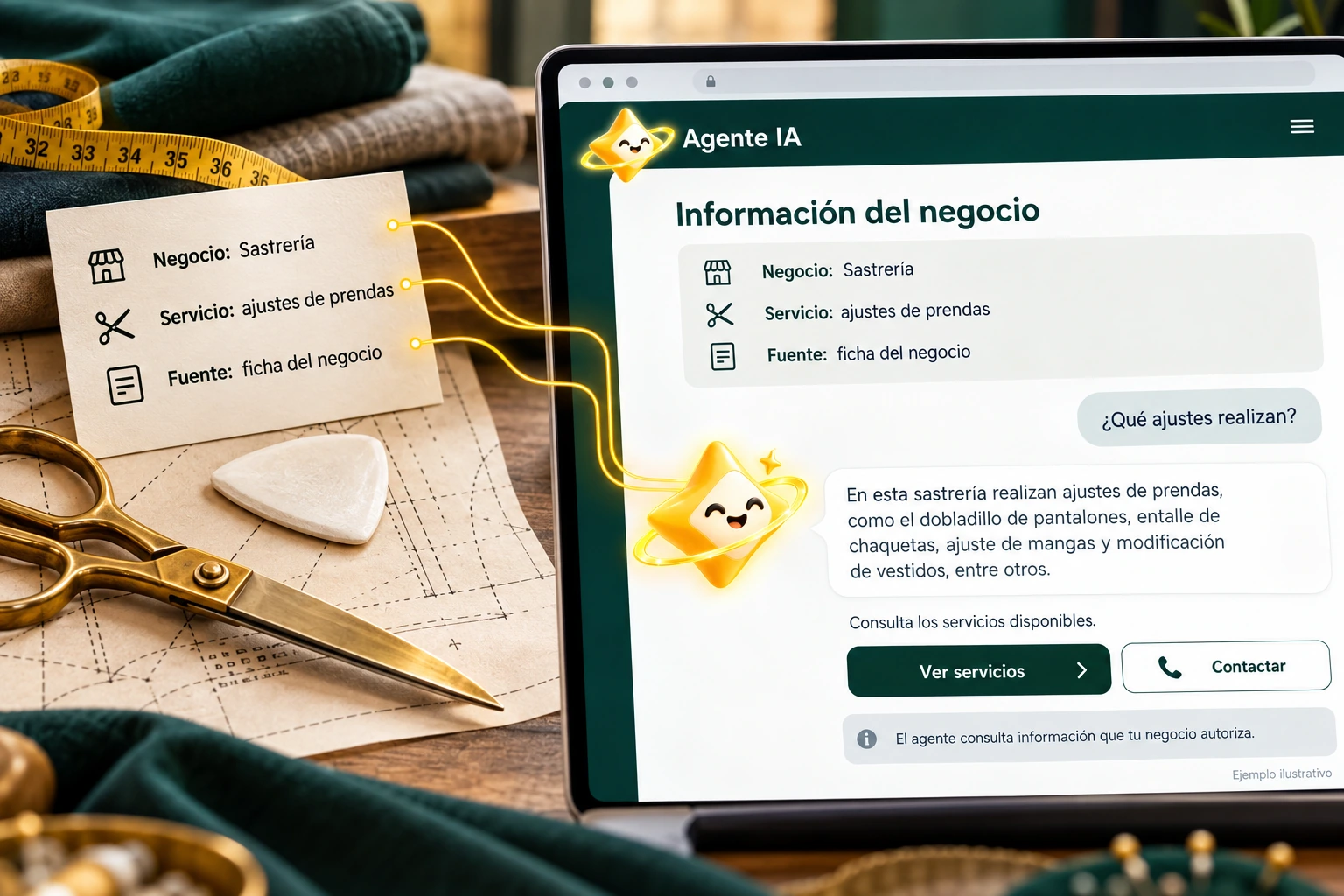
Check the installed experience.
Open and close the globe on mobile and desktop. Check the message field, reading responses, and interaction with floating buttons or other site elements.
Try common questions and human contact where appropriate. If you change the domain, infrastructure, or visual theme, repeat these checks before assuming the installation still works the same.
- Test controls and reading.
- Review presentation conflicts.
- Check data and destinations.

A tour that you can check.
- Prepare the agent and its data.
- Follow the installation guide.
- Test the public page on two devices.
Questions about installation at your site
Does the installation work for any website without review?
Check the method and requirements of your site; no universal compatibility is promised without validation.
Do I need to publish a vendor key?
No. Keep sensitive credentials off the page and follow authorized flow.
Where are the technical steps?
In the help center installation guide, linked from this page.
See the actual steps and controls.
Settings depend on your account permission, integration, and scope. The guide documents how to locate options without confusing an illustration with a completed trade.
Open the corresponding guide →Take this experience to your business.
Review business options and scope before subscription.
Know the options →I already have an account